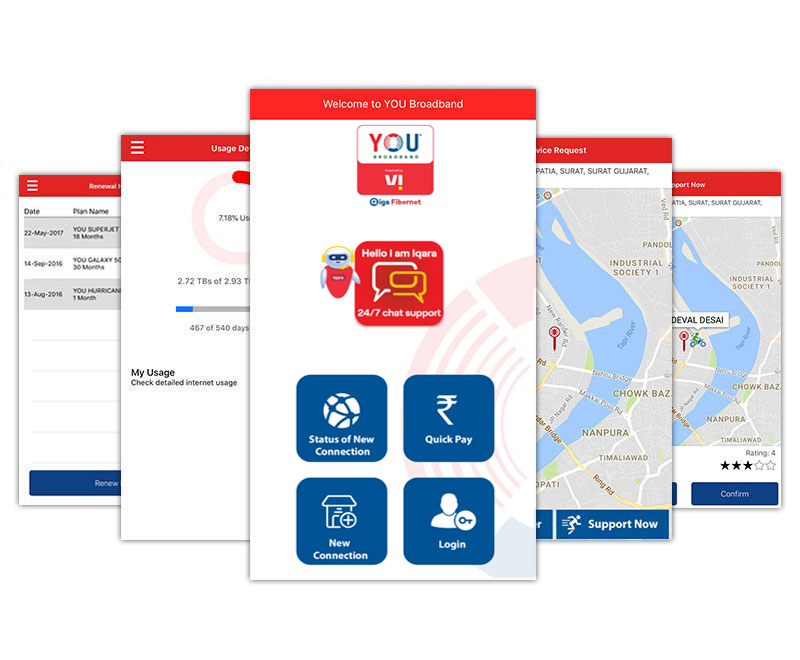
Broadband from YOU Telecom: Leading Hi Speed Broadband Internet Service provider in India.Super Fast Connection.Get Hi Speed Broadband from YOU Telecom.
What is a Modem?
A modem is a device that converts data from one form into another, as from one form usable in data processing to another form usable in telephonic transmission. A modem modulates outgoing digital signals from a computer or any other digital device to analog signals for a conventional copper twisted-pair telephone line and demodulates the incoming analog signal and converts it to a digital signal for the digital device.
Open the Control Panel (Press the Start button, then choose settings and then select the Control Panel).
Double-click on the 'Modems' icon.
If you have a modem listed in the window labeled 'Modem Properties', close this window and skip to the next section, Installing Dial-Up Networking. Otherwise, you will be prompted with the 'Install New Modem' wizard. Go on to the next step. Click 'Next'.
If you have an external modem, make sure that it is turned on.
Windows will attempt to detect your modem. When this is done, verify that it has selected the proper brand and model of your modem. If so, click 'Next' Otherwise, click 'Change'.
Select your modem from the list. Click 'OK' when you've finished. If you don't find your modem on the list then follow the next step.
START
In the Properties window, click on the 'Configure' button below the drop-down menu showing Modem. This will show the properties of your modem (Note: - The drop-down menu will show the modem, which you have configured).
The modem configuration will be displayed. The port and the speed will depend on the modem you have. Now click on the Options Tab.
If the checkbox saying "Bring up terminal window after dialing" is not checked, click on it to enable it. Click 'OK'.
Now On the Properties window of the new connection click on Server Types tab. Click the 'TCP/IP Settings" button.
The TCP/IP Settings window opens. Now select the radio button "Specify a name server address". Enter the following data:
Primary DNS: 203.109.64.23
Secondary DNS: 203.109.64.24
Click 'Ok' and close the Properties window. You have now successfully set up your dial up connection properties.
To have a shortcut of this connection on the desktop screen right click the connection icon and click on Create Shortcut. Pick and drag the new shortcut created to the desktop.
Installing Dial-up Adaptor.
You can check your Detailed Usage by visiting the "Detail Usage" section on our website. You need to provide your Login Id (or Username) and Password to access information about your account.
Installing TCP/IP.
The following steps will help you Configure and create a dial up connection to Iqara Dial Up on your computer. Before you start with this step, you will need your modem configured and Network settings complete. If they are incomplete, check out the Modem section first.
Double-click My Computer on your desktop.
Double-click Dial-Up Networking in My Computer or Click Start, point to Programs, point to Accessories, point to Communications, and then click Dial-Up Networking.
Double-Click Make New Connection. The wizard will guide you through the process.
In the box titled "Type the name of the computer you are dialing:" enter "Iqara Dial Up". Select the modem and click 'Next'.
In the next step, you need to enter the telephone number of the computer you are dialing, which means you have to enter Iqara Dial-Up numbers and the your city code and the country code. Click 'Next'.
As a final step, click 'Finish'.
Right click the icon of the new connection you have created and click on the properties.
In the Properties window, click on the 'Configure' button below the drop-down menu showing Modem. This will show the properties of your modem (Note: - The drop-down menu will show the modem, which you have configured).
The modem configuration will be displayed. The port and the speed will depend on the modem you have. Now click on the Options Tab.
If the checkbox saying "Bring up terminal window after dialing" is not checked, click on it to enable it. Click 'OK'.
Now On the Properties window of the new connection click on Server Types tab. Click the 'TCP/IP Settings" button.
The TCP/IP Settings window opens. Now select the radio button "Specify a name server address". Enter the following data:
Primary DNS: 203.109.64.23
Secondary DNS: 203.109.64.24
Click 'Ok' and close the Properties window. You have now successfully set up your dial up connection properties.
To have a shortcut of this connection on the desktop screen right click the connection icon and click on Create Shortcut. Pick and drag the new shortcut created to the desktop.
How do I setup the Automatic Redial?
You can access your Internet account from any computer, all you need to do is to create a Dial Up Connection and setup its properties.
Between Auto-redials Windows says it cannot find my modem.
You don't need any special browser to surf the Internet through Iqara Dial Up. You can use any normal Browsers like Internet Explorer or Netscape Communicator. But it is advisable to use Latest Browsers.
Error Message "There is no Dial Tone".
You don't need any special browser to surf the Internet through Iqara Dial Up. You can use any normal Browsers like Internet Explorer or Netscape Communicator. But it is advisable to use Latest Browsers.
we offer
a wide range of products and services to enhance
your Internet surfing experience. Amazing surfing
& downloading speeds, Internet Telephony,
live audio video streaming, chat and gaming
are just some of the few possibilities with
a YOU connection.
Broadband from YOU Telecom: Leading Hi Speed Broadband Internet Service provider in India.Super Fast Connection.Get Hi Speed Broadband from YOU Telecom.